Showing posts with label formula. Show all posts

Tuesday, July 5, 2016

Mobile Art Monday No. 47

I have two Stackables formulas for you today. The first I call Pods since I used it on my poppy pods.

Original (tweaked in Snapseed)

A grunge filter added in Snapseed. I love how it made the stems blend out toward the edge.

In Image Blender I added one of my own textures.

Then into Stackables for the finale.

I also used it on my freshly emerging yellow coneflower daisies. 

Original tweaked in Snapseed.

The second I call Antique. It's wonderful on still life shots. This is my original edited shot that I save the formula for.

It also worked great on my coneflowers.  (This was a formula in the app that I made adjustments to.)

And a landscape shot I thought worked good with it.

You can download the formulas for Pods here and Antique here.
 Save them to your Dropbox. 
Now on your device, open Dropbox and click the file. Use the 'Open in' option and choose Stackables. It will ask if you want to import the formula, tap 'Import'. 
You will find it under the 'formula' icon with the heart. Click the formula of choice on the right  to apply it. You can make further adjustments by clicking on the wrench icon on the lower right to make each layer editable.
Hope you had a great Mobile Art Monday yesterday and didn't have any firework mishaps.

Monday, March 28, 2016

Mobile Art Monday No. 42

I had an editing frenzy yesterday while on the road heading home. The scenery was boring and I was tired of shooting from a moving vehicle. Besides, I had taken the mother-in-law for a drive around her town and a bit into the country so I had quite a stash to choose from.

I have a new Stackables formula for you today called Clouds. It's perfect for those cloudless skies. Click here to download the Cloud formula and save it to your Dropbox. 
Now on your device, open Dropbox and click the file. In the upper right corner, click the first box (with arrow pointing up) Use the 'Open in' option and choose Stackables. It will ask if you want to import the formula, tap 'Import'.

This was my (nearly) original after cropping and lightening shadows and such in Snapseed. I removed the power lines in Retouch. (Tip: remove part of them at a time, it turns out better.)

I then decided to see what Clarity in Camera+ would do. Then added two filters on top of that.


Since I was working on my phone I didn't have access to my hundreds of custom presets from my iPad. (I should remedy this and transfer a few favorites.) So I had a play with some of the featured artists formulas. (The center beaker with the star.) These were a couple of favorites.

Sands of Time

Crystalline 

This is another shot edited with the Clouds formula.

Sands of Time 

Another cool one from that group, Winter Sunset.

An abandoned house edited with Camera+ similar to the first one.

More featured artists' formulas. By Gone.

Jai Ho

I can hardly believe that someone lives there but they apparently think satellite is a necessity.
With all the flowers starting to bloom I may post more this week. That also means more work in the garden however, and soar muscles. I see a massage in my future.

Have a great Mobile Monday!


Sunday, February 21, 2016

Mobile Art Monday No. 40

I have a new Stackables formula for you today. I call it Antique Feather. The warm tones of the feather and clarity are preserved by using masks in Stackables. 

The original was edited in Snapseed for sharpness and contrast detail in preparation of whatever I use it for.

A version without all the edge texture is easy to achieve with a few tweaks to the formula. Rather than just give you the other formula I'll make you work for it. Aren't I mean? No, I want you to get familiar with adjusting the layers in Stackables.

Click HERE to download the Antique Feather formula and save it to your Dropbox. 
Now on your device, open Dropbox and click the file. Use the 'Open in' option and choose Stackables. It will ask if you want to import the formula, tap 'Import'. 
You will find it under the 'formula' icon with the heart. Click the Antique Feather formula on the right  to apply it.

To create the less grungy edit, proceed with the following steps.
Apply the Antique Feather formula. 
Click the wrench icon at the lower right corner. This makes the whole formula editable.
Delete the last 3 layers. 7, 8, & 9 by choosing each one and clicking the -.
Add a new layer 7 by choosing +, then Texture at the top. Scroll down the right side and choose the Vulcan Ash and change the blend mode to Hard Light. Lower the opacity slider to 34.


Now lets add a mask to this layer. 
Click the mask icon at the top left.
On the right, choose the 4th mask (radial) with the dark center. 
Choose Extent on the lower left, then adjust the slider to -58.

Now choose Opacity and adjust it to 75.
(Note these last two show a square version. The formulas will adjust to whatever size your photo is.)

I hope you have been having fun with Stackables. It offers so many possibilities.


Monday, February 1, 2016

Mobile Art Monday No. 39

So far this is my favorite mobile art piece this year.

It is a collage of these two photos.

I cropped and edited the barn in Snapseed. This app always amazes me. She was also edited to tone down the highlights and lighten the shadows. I used Retouch to clone out the gray barn.
Then I opened it in Leonardo and added the girl photo on a new layer. She was carefully masked away from her background. It was a bit difficult to try and 'paint' in a shadow on a new layer underneath her but I knew it wouldn't need to be perfect.

Next, into Distressedfx for a flock of birds. I reduced the opacity a bit. In fact Distressedfx owner, Cheryl Tarrant asked to show this image on her website as it's undergoing some updating.
Then off to Brushstroke for a slight painterly effect using brush effect S3.

By now you know Stackables is one of my favorite apps. 

After a little play around I came up with this formula. You can save it to your Stackables app and use it on your images. Down load 'Rural Life' from this link and save it to your Dropbox. 
Now on your device, open Dropbox and click the file. Use the 'Open in' option and choose Stackables. It will ask if you want to import the formula, tap 'Import'. 

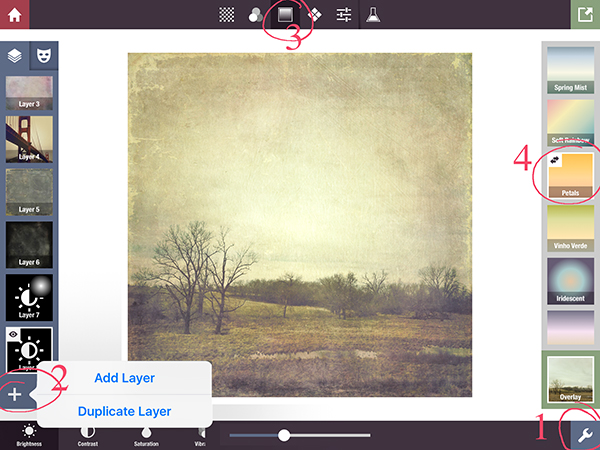
You will find it under the formula image with the heart. Click on the formula to apply it, then the wrench icon to make any changes you like.
This formula is not 'yellow' like my image appears so if you need to add some warmth, click on the add layer, click the third icon and choose 'Petals'.

This is the landscape using the original formula without 'petals'.

I'll leave you with another Stackables version that I liked.

Hope you're having a great Mobile Art Monday.